What NestWeaver is
Reading the repository is the slow way to answer a structural question. An agent opens files until the window fills, and a text search returns every place a name appears. Neither one tells you which of those places matter: who calls this, what it calls, which type it belongs to, or which tests sit downstream of a change.
NestWeaver indexes the repository into that structure and keeps it in a file on your machine, ./nestweaver.lbug by default. Later questions hit the graph. The result is small enough to read, and the same neighborhood is what an agent receives and what the web UI draws. You still open a file when you need the body. You do not open the tree to find out which file.
You use it three ways. They read the same database.
| Surface | You use it to | Start with |
|---|---|---|
| CLI | Look something up yourself, or from a script | nestweaver context <symbol> |
| MCP | Let the agent in your editor query the graph | nestweaver setup |
| Web UI | See the graph, the source, and the neighbors together | nestweaver ui |
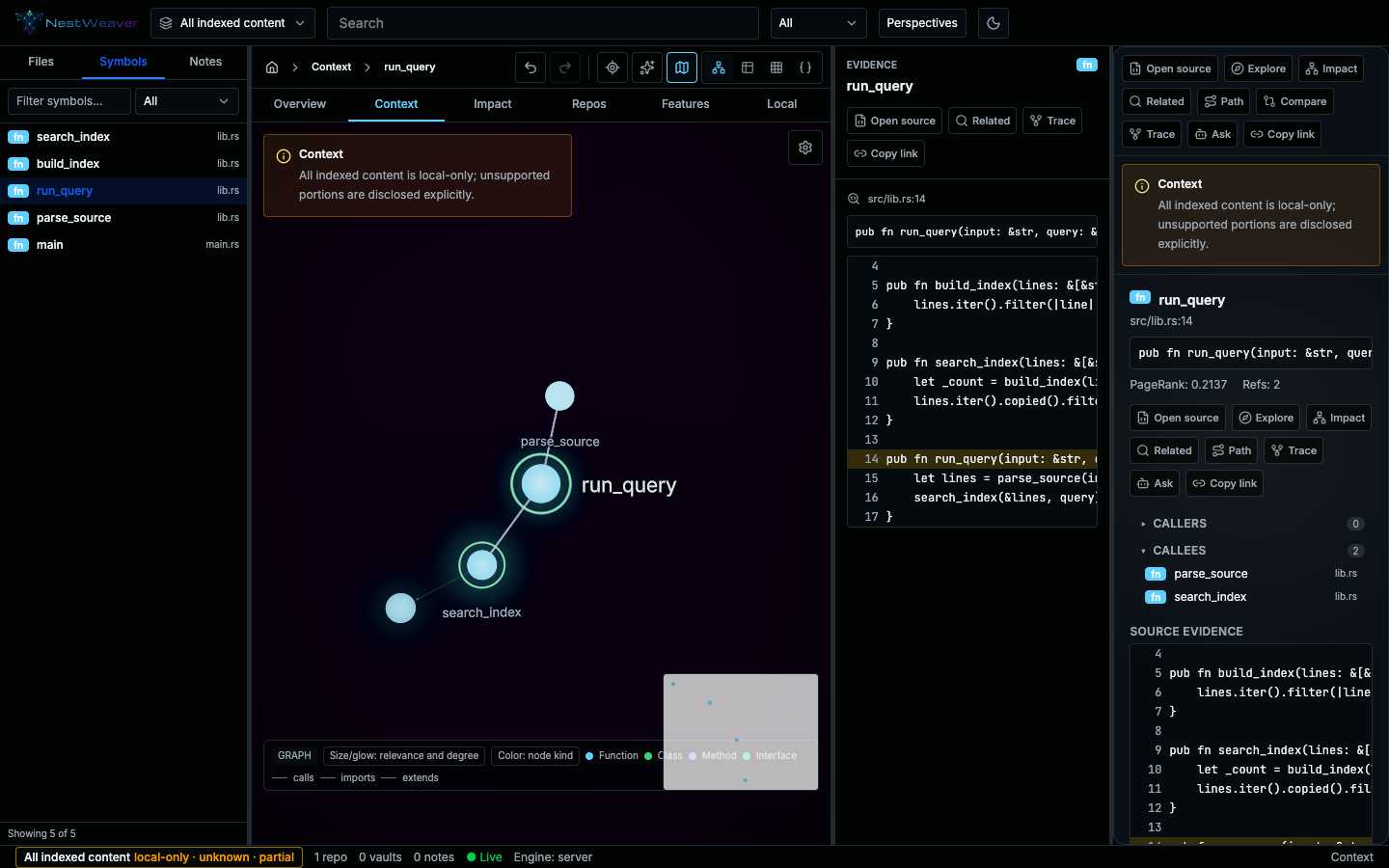
Selecting run_query in the sample above opens its source in the evidence panel and lists parse_source and search_index as callees. That is the same neighborhood nestweaver context run_query returns in the terminal.
What a query is
Section titled “What a query is”A query is a name, a file path, or a diff. It is not a chat.
- A symbol name goes to
contextorsearch.searchmatches names.contextwalks the graph around an exact name. - A file path goes to
nestweaver context path/to/file.rs. - A question in prose goes to
nestweaver investigate "how indexing works". - A pull request goes to
pr-impactandaffected-tests.
What it does not do
Section titled “What it does not do”NestWeaver does not replace your editor, and it does not send your repository to a hosted index. The graph stays in the database file you created. The web UI is a local server.
Install, then follow the Quick Start. The Web UI page is the tour of the screenshots.